
Getting started: from first tap to first finished step

In shortNo account is needed. Tap an age under “Learn”, open the first unit of the suggested stage and start step 1. A step has 8 to 10 problems.
1. Tap an age to find the suggested stage
On the Learn screen, tap an age under “How old is your child?”. The matching stage card gets an outline and a “Suggested” label.
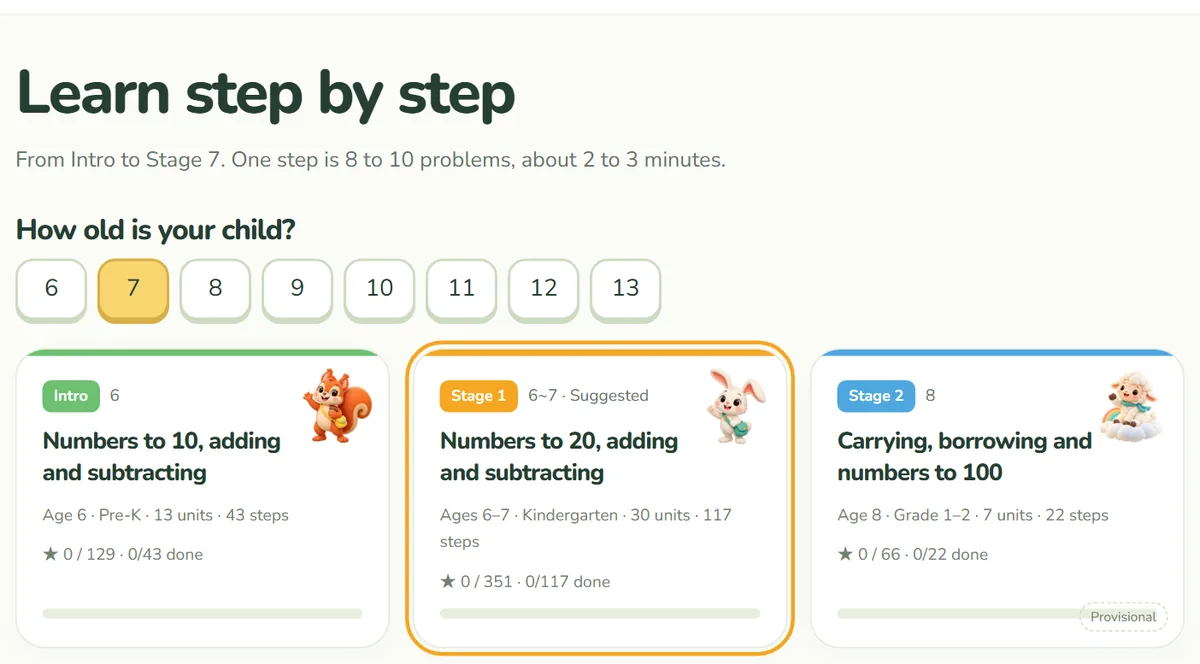
The suggestion is only a starting point. Every stage is open, so you can go straight to another one. If you are not sure, read how to choose a stage.
2. Choose a unit and a step
The course is divided into stages, units and steps. There are currently 8 stages, 92 units and 341 steps.
- Stage: a large group matched to age, from Intro to Stage 7.
- Unit: a topic to learn, such as “Count to 5”.
- Step: a page with one kind of activity. Stages for ages 6 to 7 have 8 problems per step, and 10 from age 8.
If this is your first time, begin with step 1 of the first unit. Earning a star on a step puts the next one in the suggested order. Skipping ahead is never blocked; the step just shows “Not the suggested order”.
3. Read the explanation and solve
The 84 steps that introduce something new open with a “Learn first” explanation and an example. Press “Start” to begin. Steps without an explanation go straight to the problems.
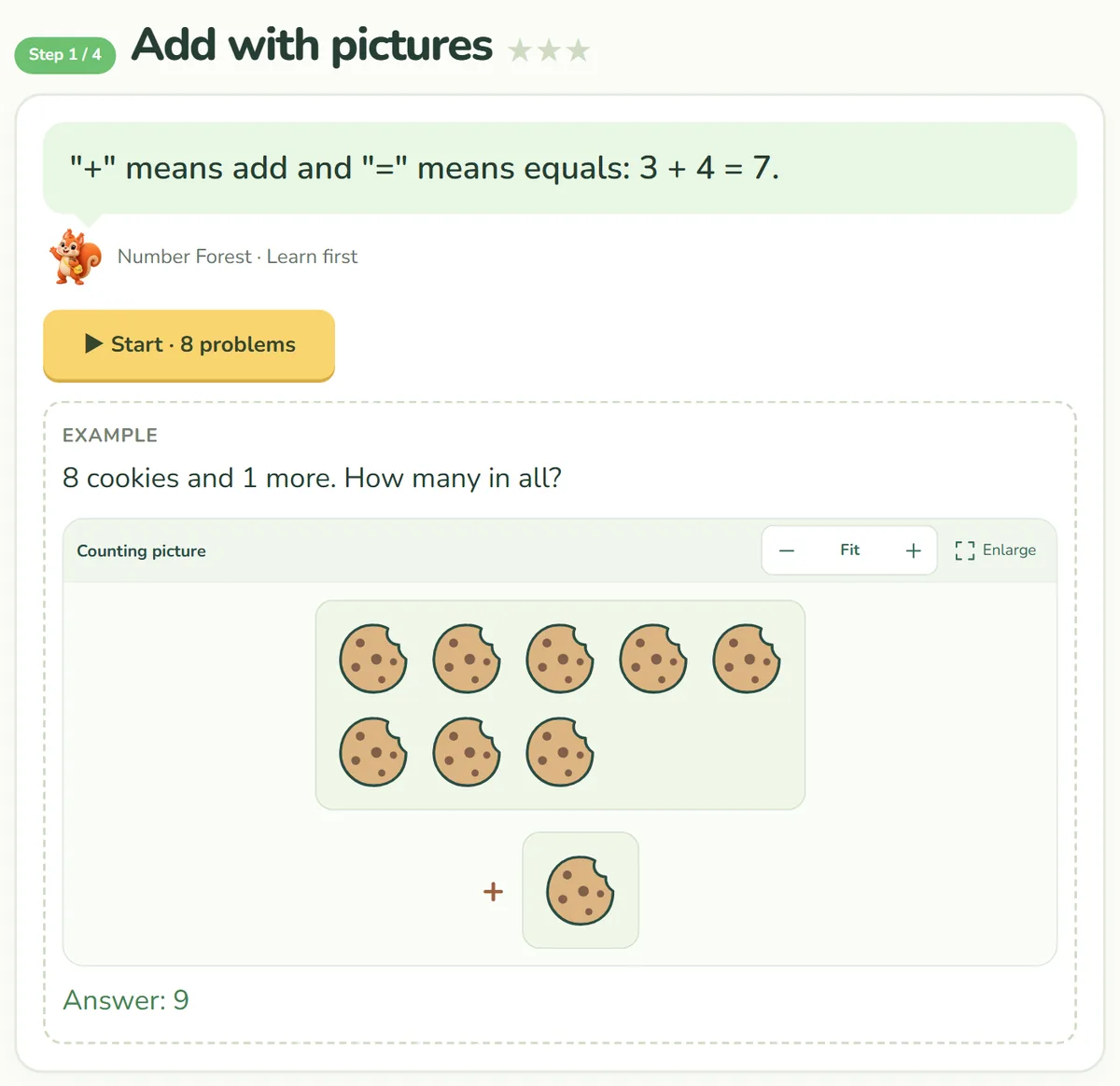
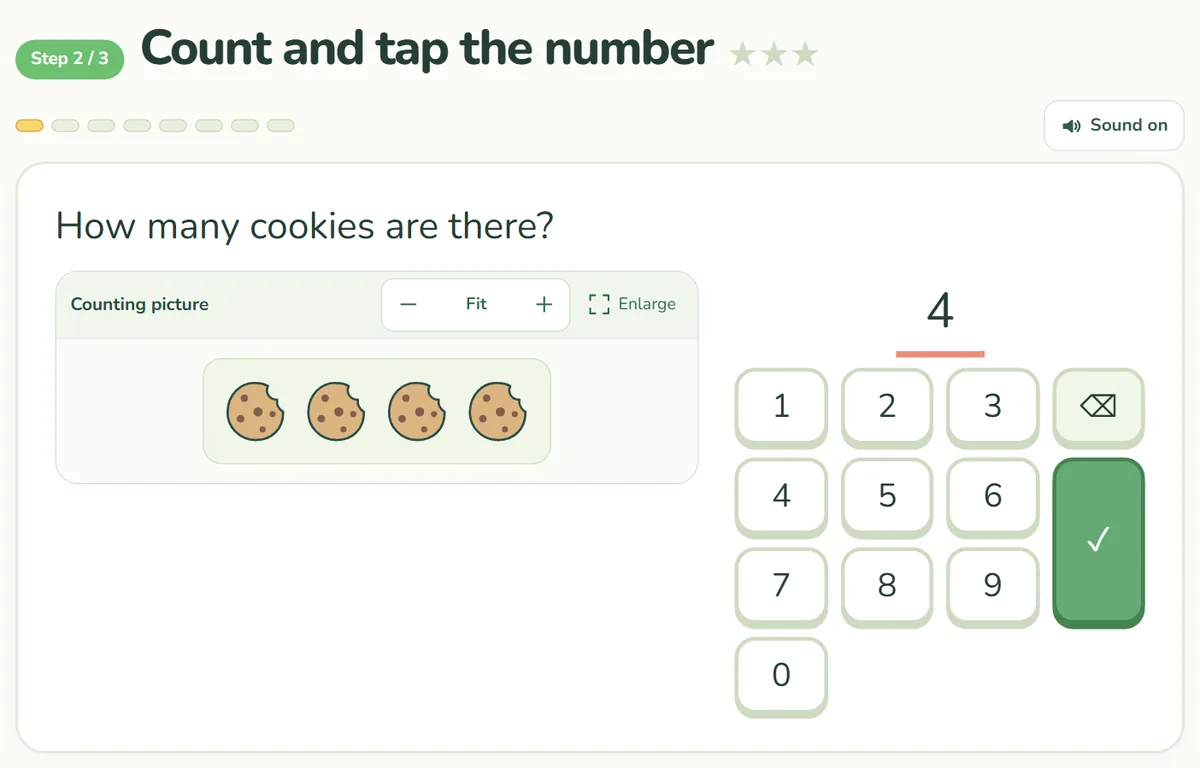
Answer by tapping a choice or using the number pad. With a keyboard, the number keys and Enter also work.
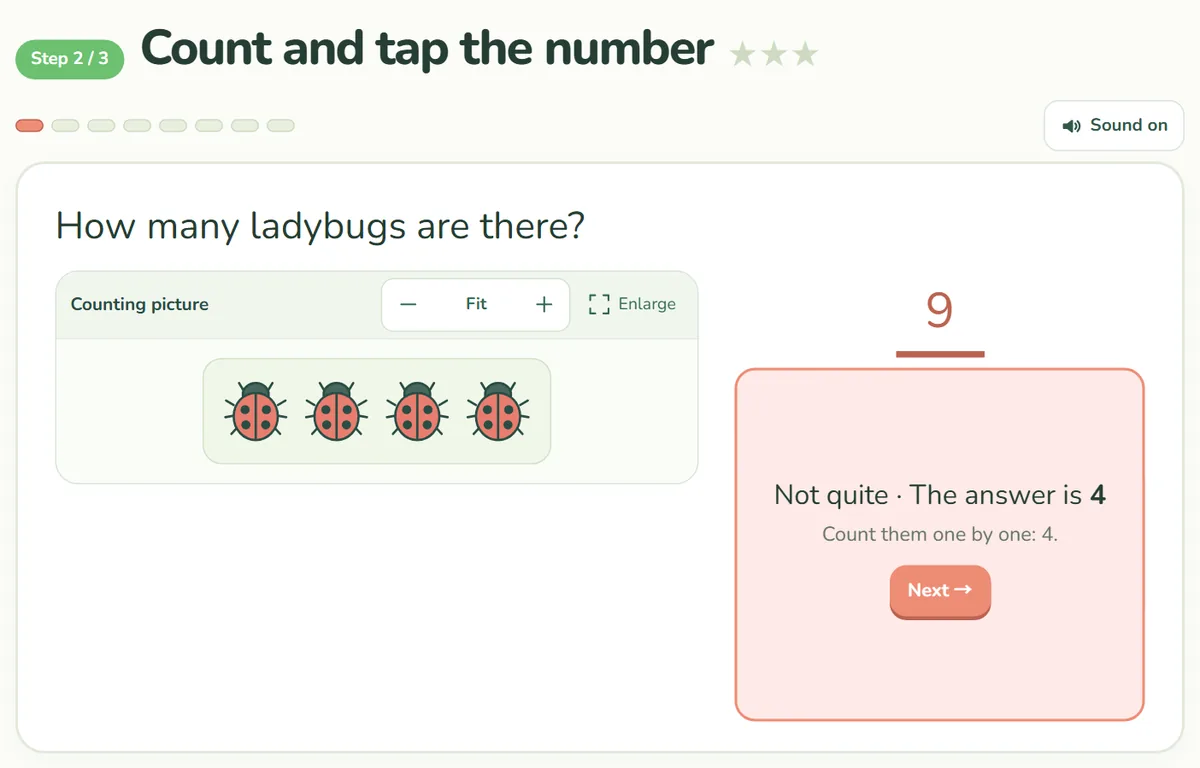
4. Read the explanation after a wrong answer
A correct answer moves on after a moment. A wrong answer shows the correct one with a one-line explanation, then waits for “Next”. Try asking your child to read the explanation aloud before moving on.
5. Check the result and move on
Each round ends with stars, the score, XP and the time taken. “Try again” repeats the step with new problems, and “Next step” moves on.
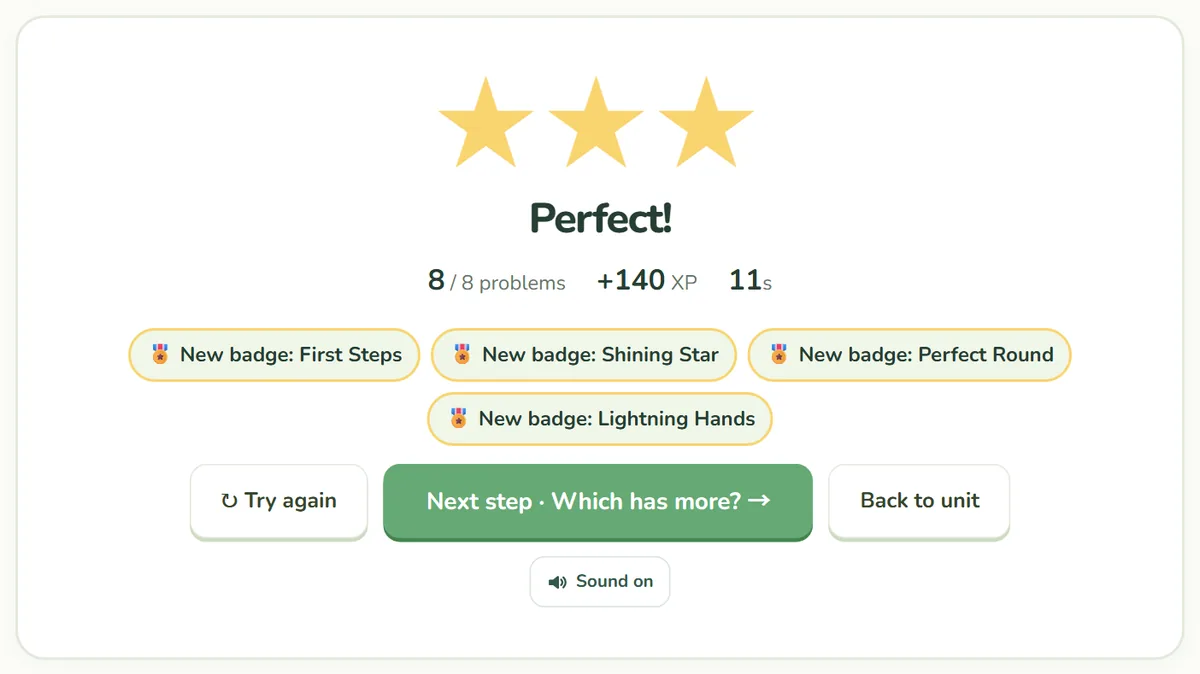
See the guide to stars and review for how to read the stars.
Good to know before you start
- Screen: a tablet or computer is most comfortable. Phones work too, but problems with large pictures may need some scrolling.
- Sound: problems come with sound effects. Use the sound button on the practice screen to turn them on or off.
- Records: stars and XP are saved in the browser you are using. The guide to saving progress has the details.