MyMathFriend
Learning guide
How to get started, which stage to choose and how to read stars and records, written for parents and teachers.


Three steps to get going
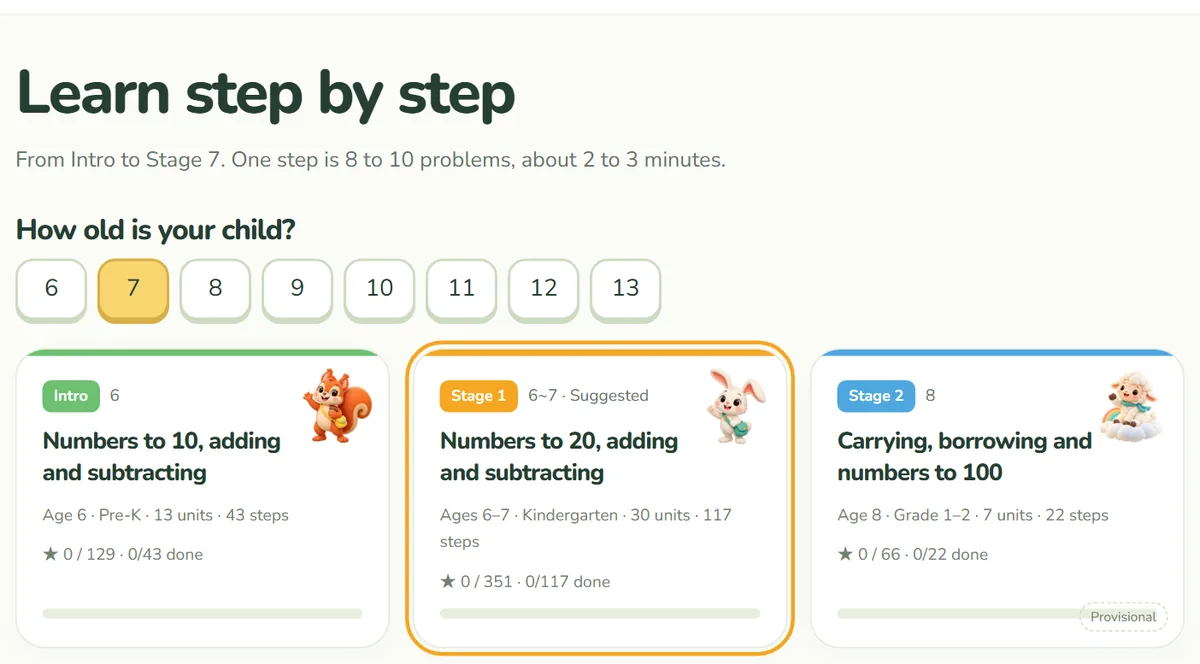
- Pick an ageTap an age under “Learn” and the matching stage is suggested.
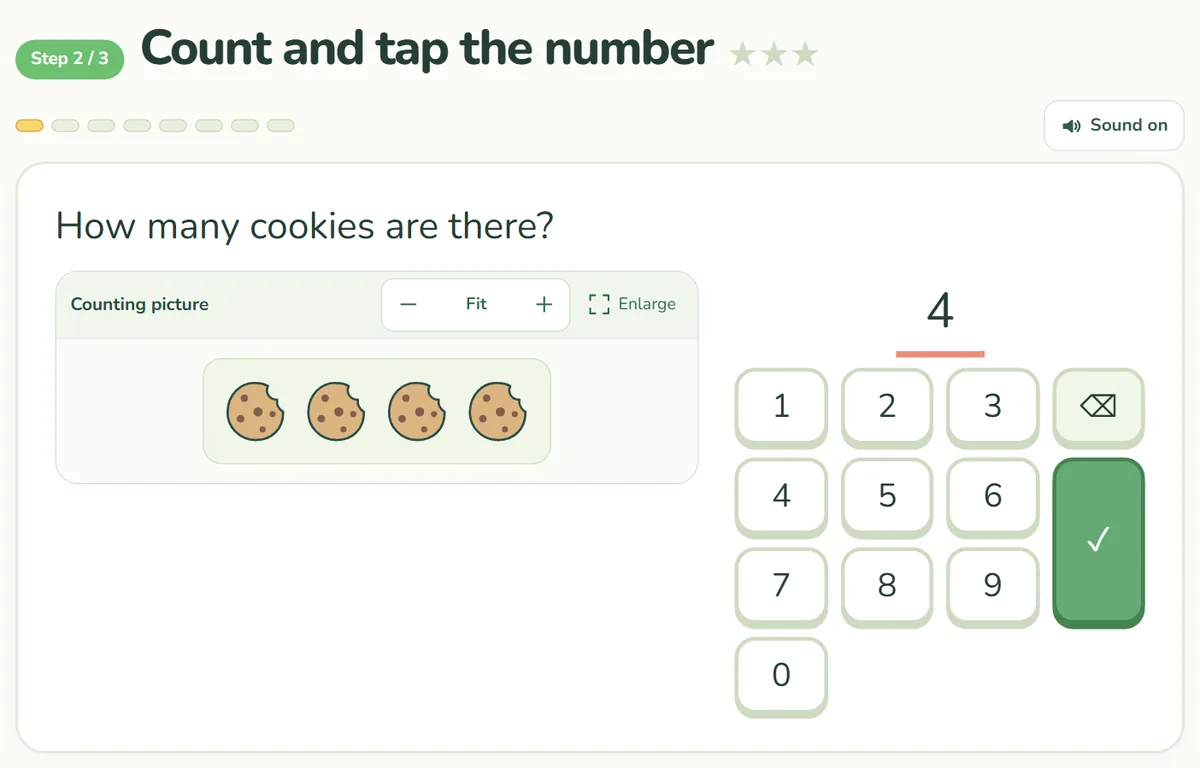
- Finish one stepStart with step 1 of the first unit: 8 to 10 problems, no sign-up.
- Check the starsUse the stars to decide whether to try again or move on.
Guides
- Getting started: from first tap to first finished stepPick an age, choose a unit and step, and finish a first step with no sign-up. A walkthrough using the real screens.
- How to choose the right stage for your childA table of suggested stages by age and what each covers, plus how to adjust using the first stars your child earns.
- Making the most of stars, XP, badges and reviewWhat three stars really means, when to repeat a step, how “Review today” picks steps, plus XP, ranks and badges.
- One or two steps a day: building a daily math habitA simple daily routine, how to use the Daily challenge, what to do when a streak breaks, and using it in class.
- Where progress is saved, and moving it with a growth codeWhere stars and XP are stored, when records can disappear, and how to continue on another device with a growth code.
The stages at a glance
Every stage from Intro to Stage 7 is open. Tap a stage to see its units.
- IntroAge 6 · Pre-KNumbers to 10, adding and subtracting
- Stage 1Ages 6–7 · KindergartenNumbers to 20, adding and subtracting
- Stage 2Age 8 · Grade 1–2Carrying, borrowing and numbers to 100
- Stage 3Age 9 · Grade 2–3Two-digit sums and times tables
- Stage 4Age 10 · Grade 3–4Multiplying, dividing and first fractions
- Stage 5Age 11 · Grade 4–5Big numbers, fraction and decimal sums, angles
- Stage 6Age 12 · Grade 5–6Factors, common denominators, multiplying fractions and decimals, area
- Stage 7Age 13 · Grade 6–7Dividing fractions and decimals, ratio and percent, circles and volume




Common questions
Is it really free?
Yes. Every problem is free, you can start without signing up, and there are no ads on the practice screen.
Do I need to enter my child’s personal details?
No. We do not ask for a child’s name or email. A nickname is optional and stays in your browser.
Which device works best?
We suggest a tablet or computer. Phones work too, but problems with large pictures may need some scrolling.
Do I need to install an app?
No. Just open it in a browser. There is no mobile app yet.
Can I move records to another device?
Yes. Copy the growth code from “My growth” and paste it on the other device.
Latest news
- NewsIntroducing the learning guide and blogFive guides, from getting started to moving records, and a blog for news. We also fixed the Daily challenge and My growth screens.
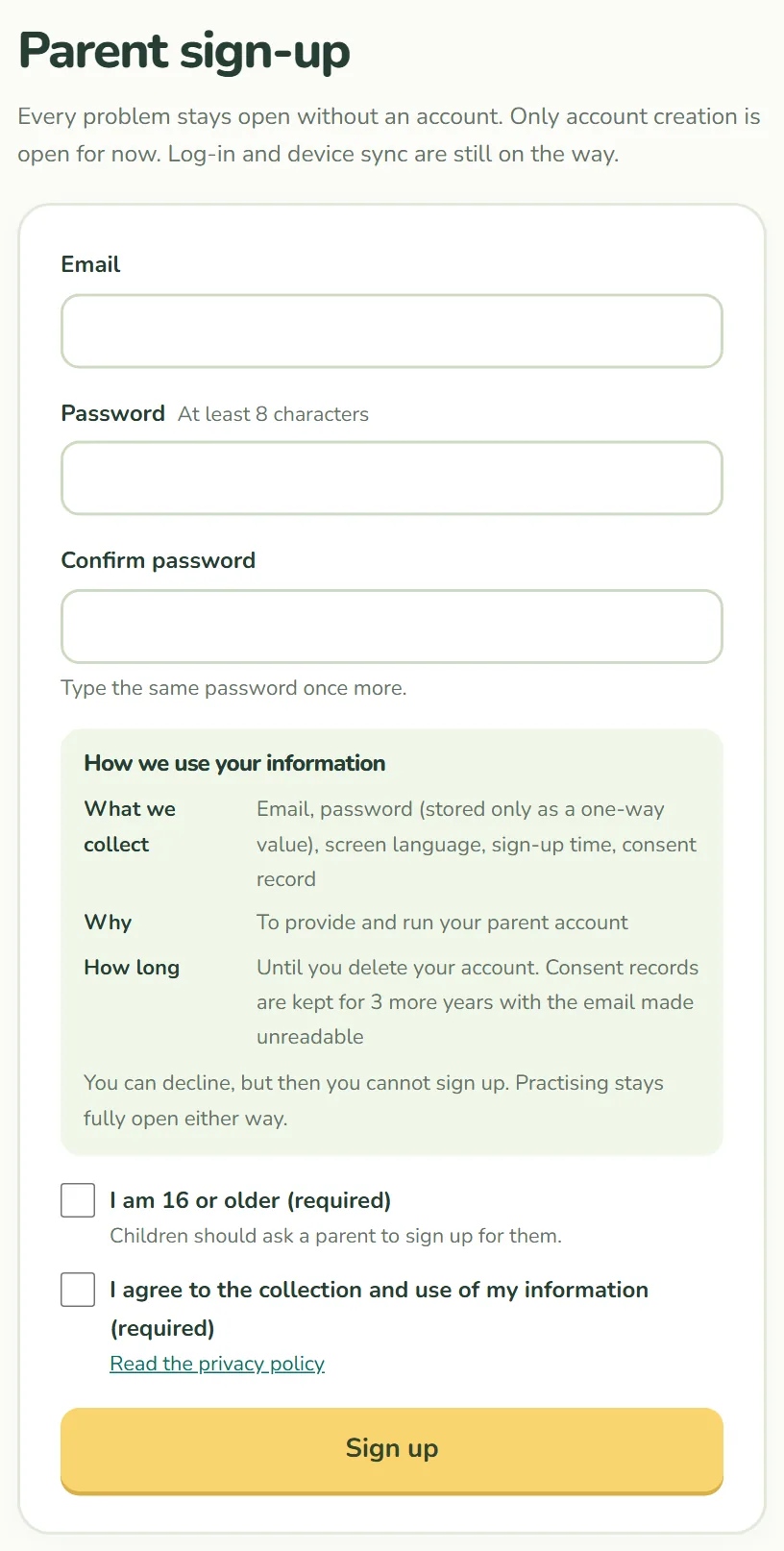
- NewParent sign-up is now openYou can now create a parent account. Signing up is optional, and every problem stays free with no account needed.
- ImprovedAn easier practice screenA better number pad, larger explanation text, a clearer wrong-answer message, a fix for length problems, and one consistent picture style.